Your first bulk job, start to finish
A price change on a live catalog, from the empty form to a verified receipt. Seven steps, two of which are just you reading — and two points where you can still walk away having written nothing at all.
Every job in Gridproof follows the same path, whether it changes two variants or twenty thousand: snapshot, preview, confirm, execute, verify. Learning it once on a small job means you already know how the big one will behave, which is rather the point of a free tier that includes every safety feature.
This walkthrough uses a price change because it's the highest-stakes edit most stores run. Tags, status, metafields and CSV imports take exactly the same path.
Before you start
- Run the first one small. A job that touches three products exercises the entire workflow, and gives you a rollback you can practise on. The free plan allows unlimited jobs of up to 100 changes each, so rehearsing costs nothing.
- Know what Gridproof can see. It requests product scopes only. It cannot read your customers, orders or payments, which also means it can't damage them.
- Gridproof never creates or deletes products. It changes values on products that already exist. That's a deliberate limit and it caps the blast radius of anything going wrong.
Step 1 — What to change
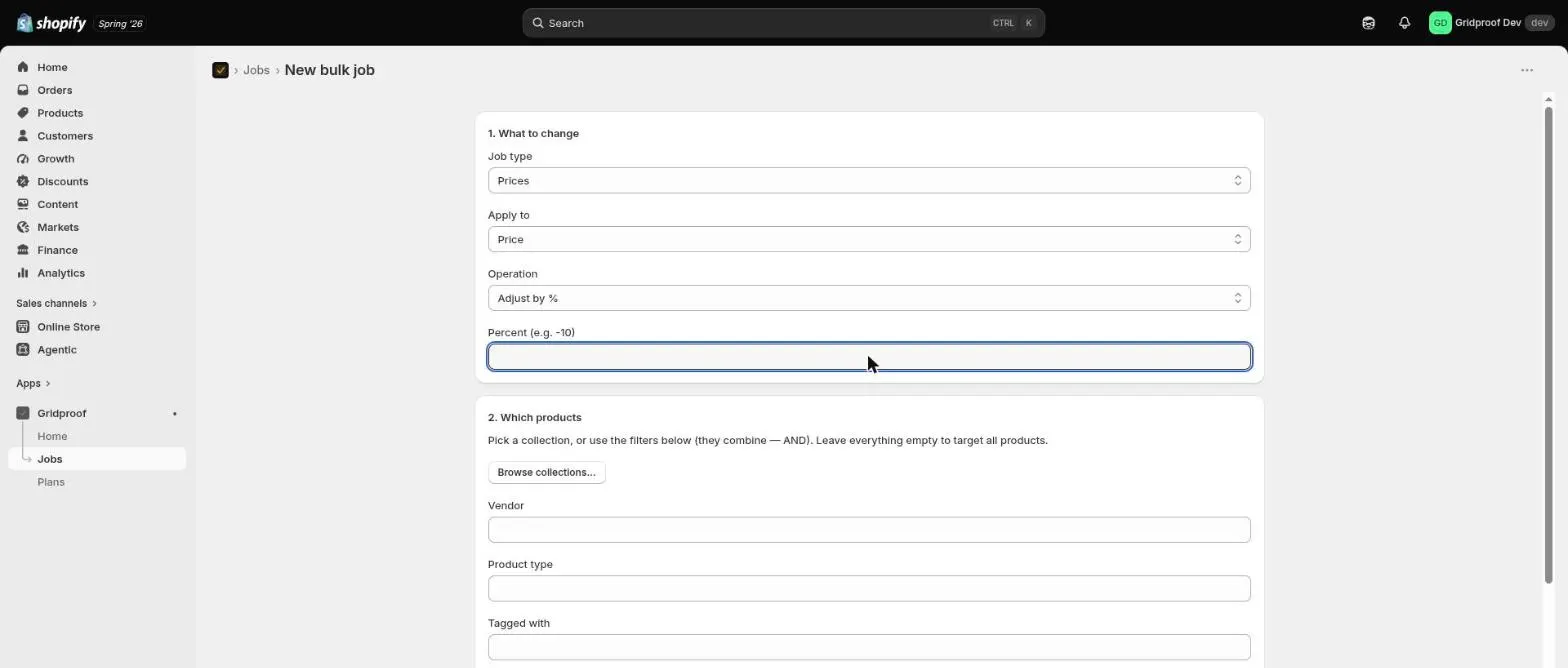
Open Jobs → New bulk job. The first card asks what kind of change this is: prices, tags, product status, metafields, or a CSV import. Picking one reveals only the fields that apply to it.
For a price change you choose three things: whether you're editing the
price or the compare-at price, the
operation (adjust by a percentage, adjust by an amount, set a fixed
value, or — for compare-at only — clear it), and the value itself. A ten percent
reduction is the operation "Adjust by %" with a value of -10.
Step 2 — Which products
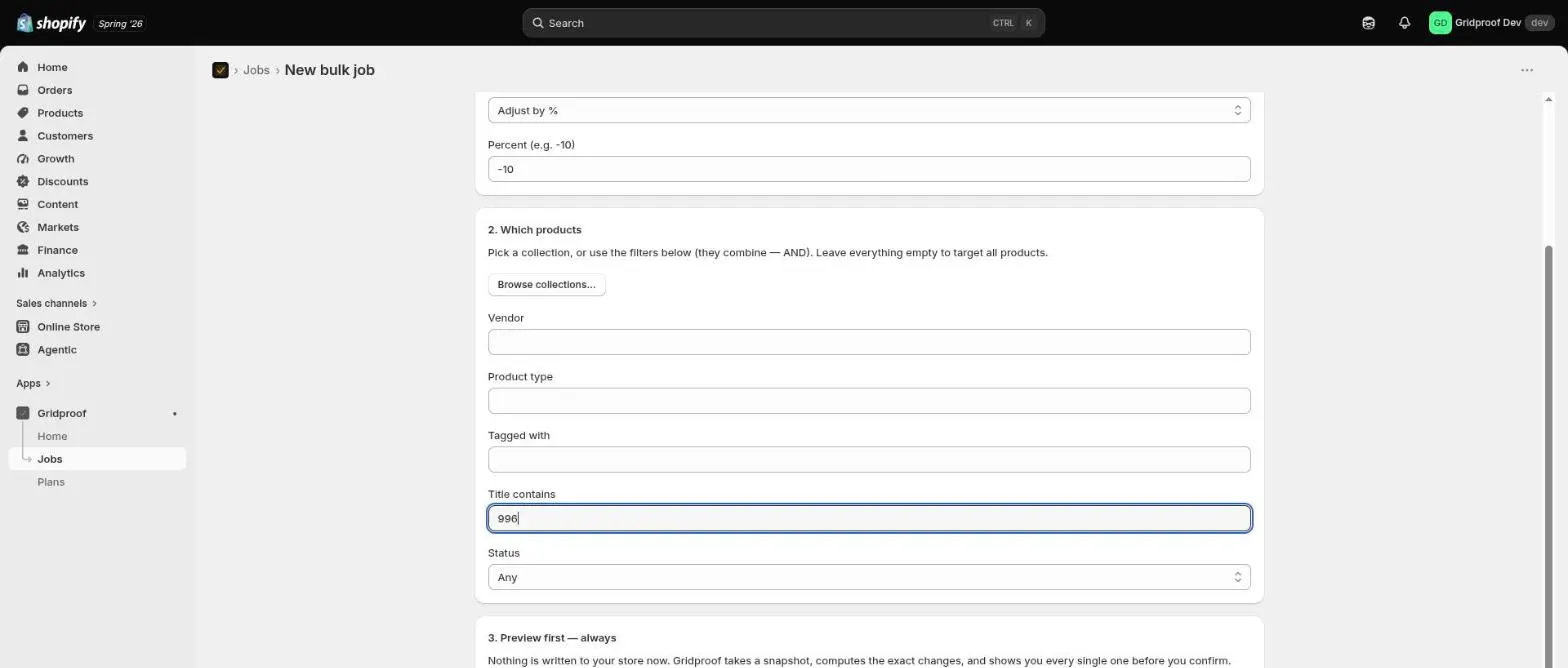
The second card decides the blast radius, and it's where most bulk-edit accidents are actually born. You have two ways to target:
- Pick a collection with the browser, which targets exactly its members.
- Use the filters — vendor, product type, tag, title contains, status. They combine with AND, so filling in two of them narrows the set rather than widening it.
Two behaviours worth committing to memory. A selected collection wins: while one is chosen the filters below are ignored entirely. And leaving everything empty targets your whole catalog — which is occasionally what you want, and occasionally the most expensive typo in the form.
Step 3 — Snapshot & preview
Pressing Snapshot & preview changes does not run your edit. It does two things:
- Takes a checkpoint snapshot of the fields this job could change, across every targeted product. This is what rollback restores from later, and it is taken before anything is computed, let alone written.
- Works out the exact change for each entity and lists them.
You'll watch the job move through a couple of working states while that happens. On a catalog of any size this takes a moment; the page refreshes itself, so there's nothing to poll and nothing to keep open.
If the answer turns out to be "nothing would change" — every targeted product already holds the value you asked for — the job says so plainly and stops there rather than reporting a hollow success.
Step 4 — Read the preview
This is the step that does the work, and the only one where the software can't help you. The preview names every entity and shows the field, the value before, and the value after. Not a count. Not a sample.
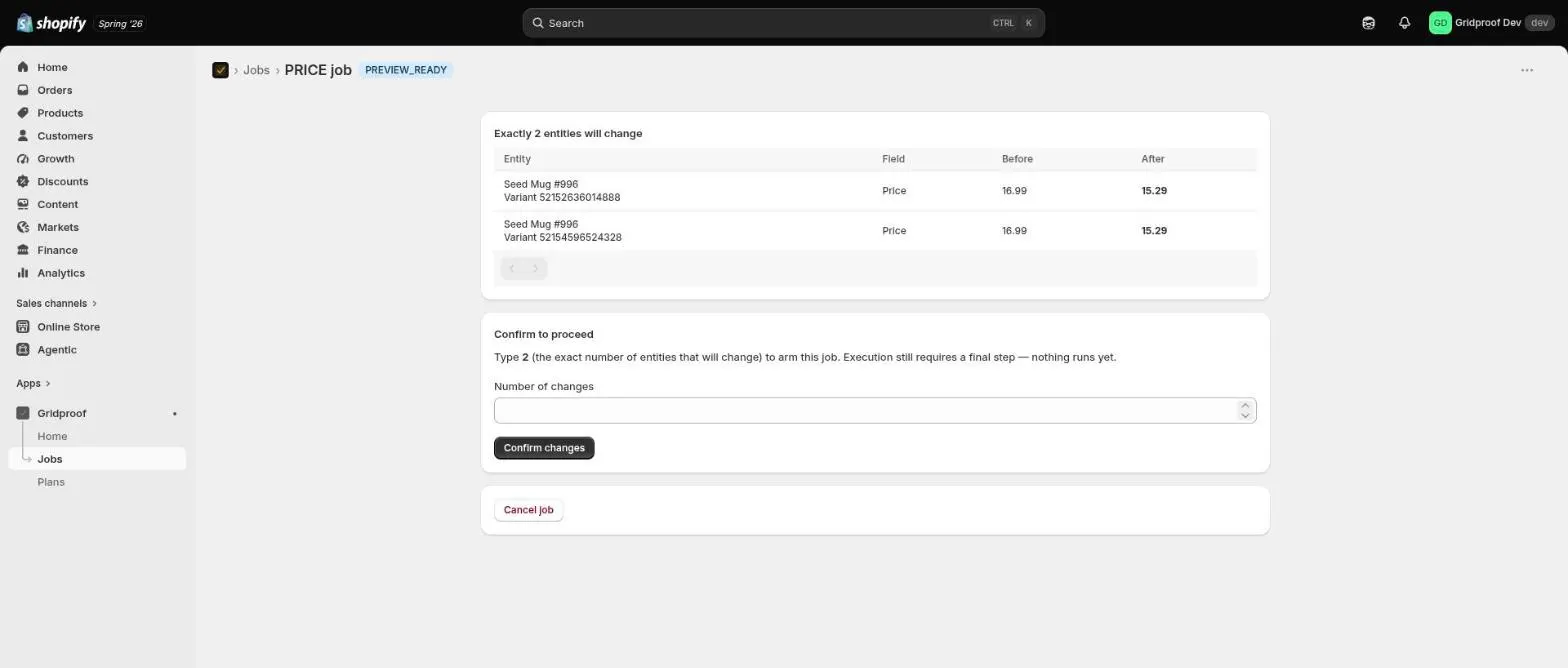
What to look for, in order: is the number of affected entities roughly what you expected? Are there names in the list you didn't mean to include? Do the before values look like real current prices, or like something already wrong? A preview full of products you don't recognise is a filter problem, and the fix is to cancel and re-target — not to proceed carefully.
You can still cancel here, and nothing has been written. The Cancel job button remains available right up until execution starts. A cancelled job leaves your catalog exactly as it was.
Step 5 — Type the count
To arm the job you type the exact number of entities that will change. It has to match; a near miss is refused with the two numbers side by side.
The friction is the feature. A checkbox or an "Are you sure?" gets clicked reflexively, and reflex is precisely the failure mode here — the merchant who ran the job they meant to run on staging, or who didn't notice that a filter matched 4,000 products instead of 40. Typing a number forces you to have read one. That's the whole mechanism, and it costs three seconds.
Step 6 — Execute
Confirming arms the job; it does not run it. You get a second screen stating what is about to happen and a single button to do it.
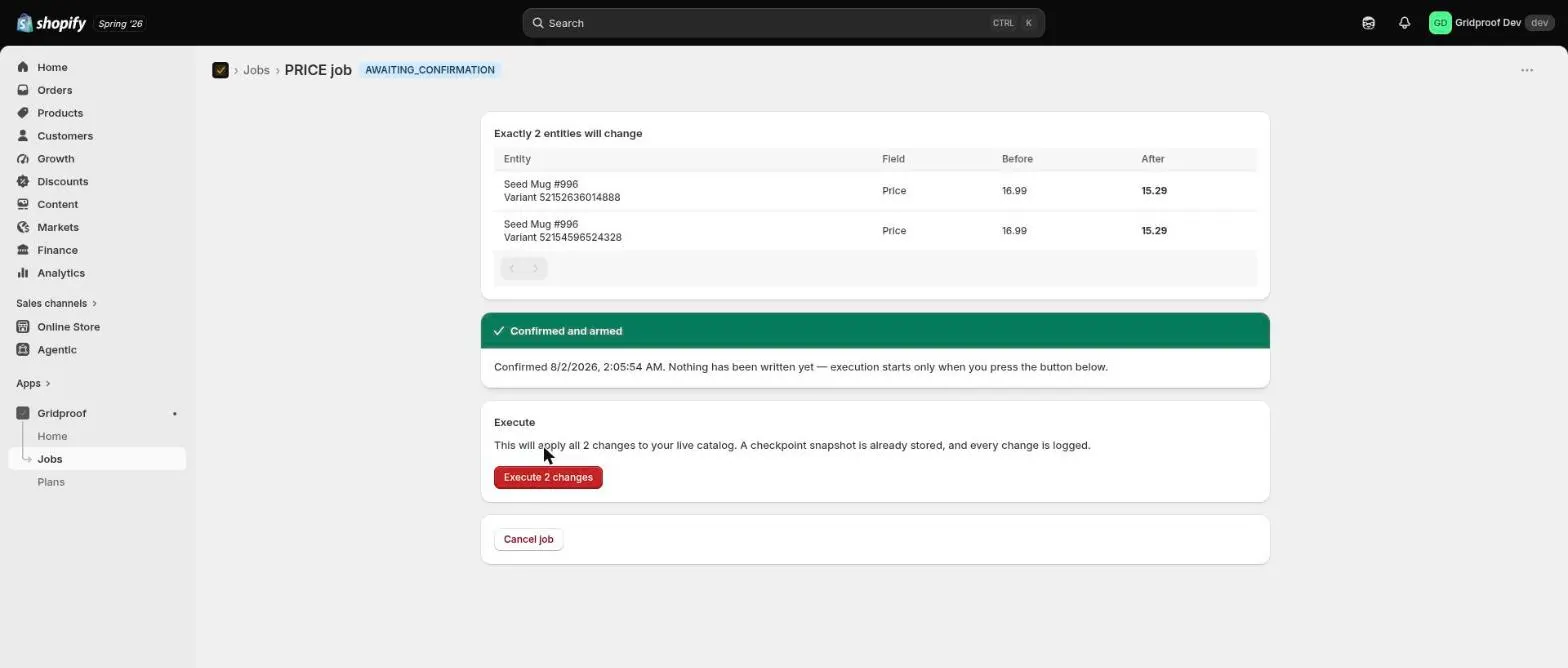
Press it and the changes go to your store, with progress shown as they land. You can close the tab — the job runs server-side and the receipt will be waiting.
Step 7 — Read the receipt
When execution finishes, Gridproof does the step most bulk editors skip: it goes back to your live catalog and re-reads every entity it touched, then compares what's actually there against what the job intended, field by field. The result is a new Observed column sitting next to After.
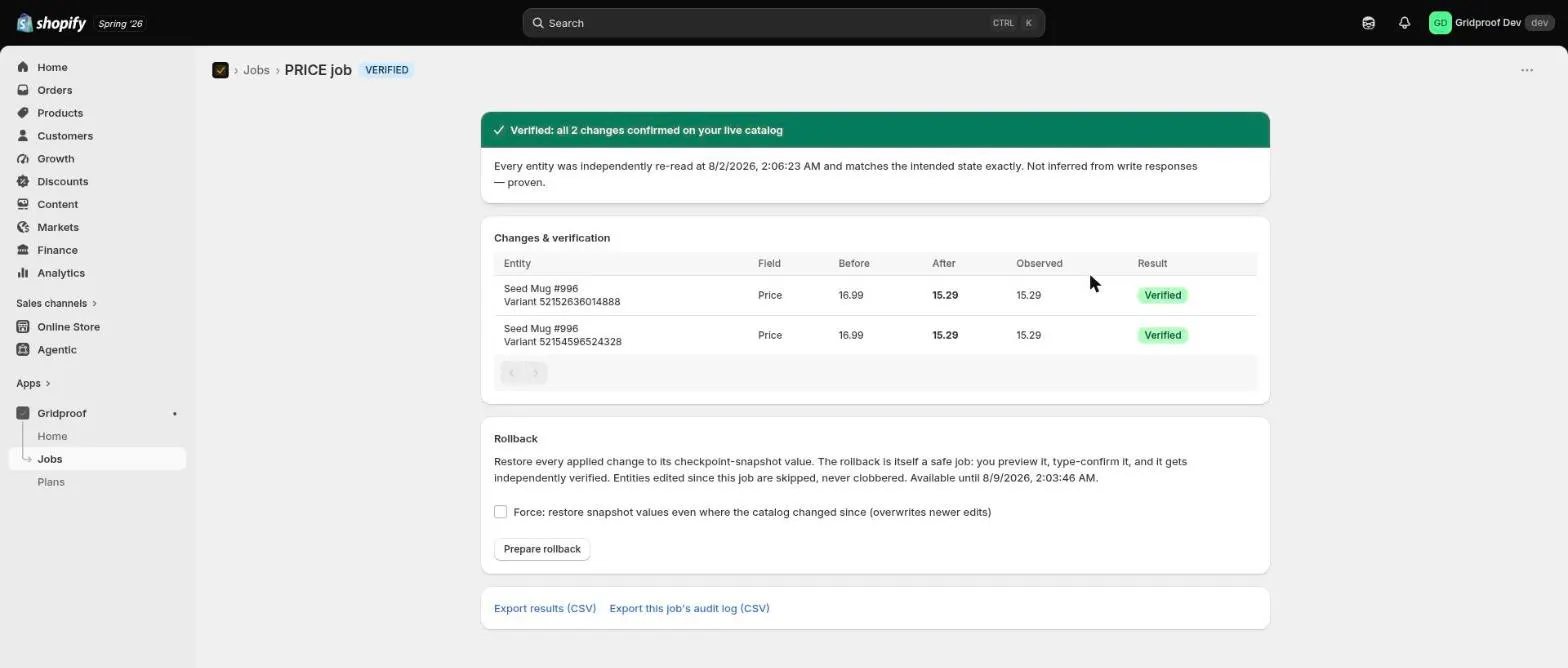
Two outcomes matter:
- Verified — every change was found on your live catalog exactly as intended. This is a claim about your store, not about the app's own write responses.
- Verification found problems — some rows didn't land. Each one shows the value it intended next to the value your catalog actually holds. Nothing is quietly folded into a success count.
That second outcome is the reason the whole workflow exists. A bulk operation can report itself complete while individual rows inside it failed — see why "COMPLETED" bulk operations still fail for the mechanism. Reading the write response tells you what was sent. Reading the catalog tells you what is true.
What you have afterwards
From the finished job you can restore everything it changed, export the results as CSV, export the per-field audit trail as CSV, and download the checkpoint snapshot. Rollback stays available for your plan's window — 7 days on Free, 30 on Standard, 90 on Premium — and the rollback is itself a previewed, type-confirmed, verified job rather than a button that fires immediately.
All of that is covered in reading the receipt: verification, rollback and the audit trail.
Next steps
- What Gridproof can change, and exactly which products — every job type, operation and targeting option.
- Running bulk edits safely — the habits that matter once the tool is no longer new.
- The pre-flight checklist for price changes — worth ten minutes before a big one.