Bulk editing from a CSV
When every product needs its own value rather than one shared rule. The complete column spec, the two cell values that mean something special, and what happens when a file has a mistake in it.
A filter-based job applies one rule to many products: everything in this collection, down ten percent. A CSV import does the opposite — it carries a specific target value for each specific entity. Supplier price lists, individually negotiated prices, a batch of metafields exported from somewhere else: those are CSV jobs.
Everything after the upload is identical to any other job. Same checkpoint snapshot, same full preview, same typed confirmation, same post-write verification, same rollback. The CSV only decides what the target values are, not how carefully they're applied.
The one rule that explains the rest
19.99 in a price cell and that variant ends at 19.99. There is no "reduce by"
column, because that's what a filter-based price job is for.Columns
Each row addresses exactly one entity, identified by either
variant_id or product_id — never both in the same row.
Which one you use decides which other columns that row may fill in.
| Column | Goes with | Accepts |
|---|---|---|
variant_id | — | A numeric variant id or a full gid. Unlocks the two price columns. |
product_id | — | A numeric product id or a full gid. Unlocks tags, status and metafields. |
price | variant_id |
A money value, e.g. 19.99. |
compare_at_price | variant_id |
A money value, or NULL to clear the compare-at price. |
tags | product_id |
Comma-joined. A full replacement of the product's tag list. |
status | product_id |
ACTIVE, DRAFT or ARCHIVED. |
metafield.namespace.key | product_id |
The value. NULL removes the metafield. |
Metafield columns can name a type by appending it after a colon —
metafield.custom.width:number_integer. Without one the value is treated as
single-line text. This is how you reach metafield types the wizard's dropdown doesn't
offer.
You may mix variant rows and product rows in one file; the header just needs both id
columns present, with each row filling in only one of them. Any column name that isn't in
the table above (and isn't a metafield. column) is rejected — a typo in a
header is caught rather than silently ignored.
Empty cells and NULL
These two are not the same thing, and the difference is the whole reason a CSV import is safe to run against a partial export:
- An empty cell means "leave this field alone." It is not a
request to blank the field. A file containing only
variant_idandpricetouches nothing but prices. NULLmeans "remove this value." It works incompare_at_price(clearing the compare-at) and in metafield columns (unsetting the metafield). Nowhere else — there is no way to null a price, because a variant must have one.
This is the opposite of how a Shopify product CSV re-import behaves on some fields, and it's deliberate. An export-edit-reimport round trip through a spreadsheet is a common way to destroy data you never intended to touch. Here, a column you didn't include cannot be affected by the job at all.
The tags column is a replacement
Worth its own heading because it catches people. tags sets the product's
tag list to exactly what's in the cell. Tags applied by your theme, your reviews app or
your subscriptions app are not preserved unless they're in the cell too.
If you want to add or remove a tag while leaving everything else intact, use a filter-based tags job instead — it has separate add and remove fields for precisely this reason. See what Gridproof can change.
Limits
- 20 MB per file.
- 10,000 rows per job. Larger catalogs are fine — split into several files, which also gives you several independent rollback points.
- Every row must actually ask for something. A variant row with no price and no compare-at, or a product row with no tags, status or metafield, is flagged as a mistake rather than skipped.
- An entity may appear only once per file. A duplicate id is an error, not a last-one-wins race.
What happens when the file has a mistake
The whole file is rejected, and nothing is written. Gridproof validates every row first and reports the problems it found with their row numbers — an unparseable price, an unknown column, a row filling in both id columns, a duplicate entity. It does not import the good rows and leave you to work out which ones those were.
The same applies to ids that don't exist on your store: if a row points at a variant or product that isn't there, the job stops and names them rather than quietly dropping those rows from the count.
Fix the file, upload again. Because nothing was written, there's nothing to undo.
Running the import
- Jobs → New bulk job, job type CSV import, choose the file.
- Gridproof reads the current state of every entity your file references — that read is the checkpoint you can roll back to — and computes the difference between it and your target values.
- You get the same preview as any other job: every row, with before and after. Rows whose target already matches reality simply don't appear, so the count is what will genuinely change, not how many lines your spreadsheet has.
- Type the count, execute, and read the verified receipt.
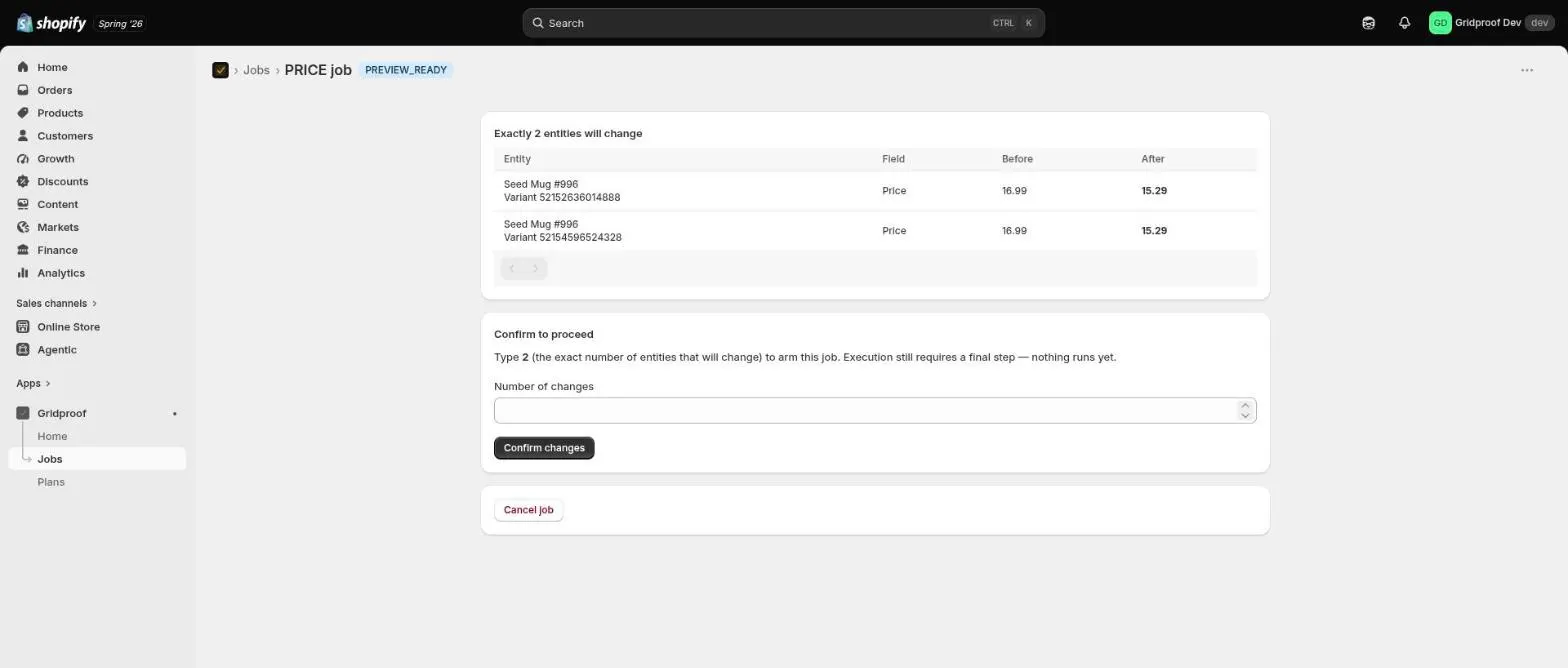
Before a big import
- Test with five rows. Cut the file down, run it, read the receipt, then run the rest. This is free on every plan and catches column mistakes for the price of two minutes.
- Check what your spreadsheet did to your ids. Long numeric ids get mangled into scientific notation by default in most spreadsheet software. Format those columns as text before you save.
- Check what it did to your prices. Locale settings that write
19,99instead of19.99are the single most common cause of a rejected file. - Keep the file. It's the clearest record of what you intended, and it pairs well with the audit export of what actually happened.
Next steps
- Verification, rollback and the audit trail — reading the receipt and undoing an import.
- Running bulk edits safely — the operating habits, including how to rehearse.
- What Gridproof can change — the rule-based alternative to a CSV.